> ## Documentation Index
> Fetch the complete documentation index at: https://docs.modempay.com/llms.txt
> Use this file to discover all available pages before exploring further.
# WooCommerce
Accept secure mobile money payments through Modem Pay’s inline checkout directly in WooCommerce.
## 🚀 Installation
### Option 1 - From WordPress Directory (Coming Soon)
***
### Option 2 - Manual Installation
1. Download the latest version of the plugin as a ZIP file [here](https://modempaybucket.s3.eu-west-2.amazonaws.com/wordpress-plugins/woocommerce/woocommerce-modempay-gateway.zip).
2. In WordPress, navigate to **Plugins → Add New → Upload Plugin**.
3. Upload the ZIP file and click **Install Now**.
4. Once installed, click **Activate Plugin**.
 ***
## ⚙️ Configuration
After activation:
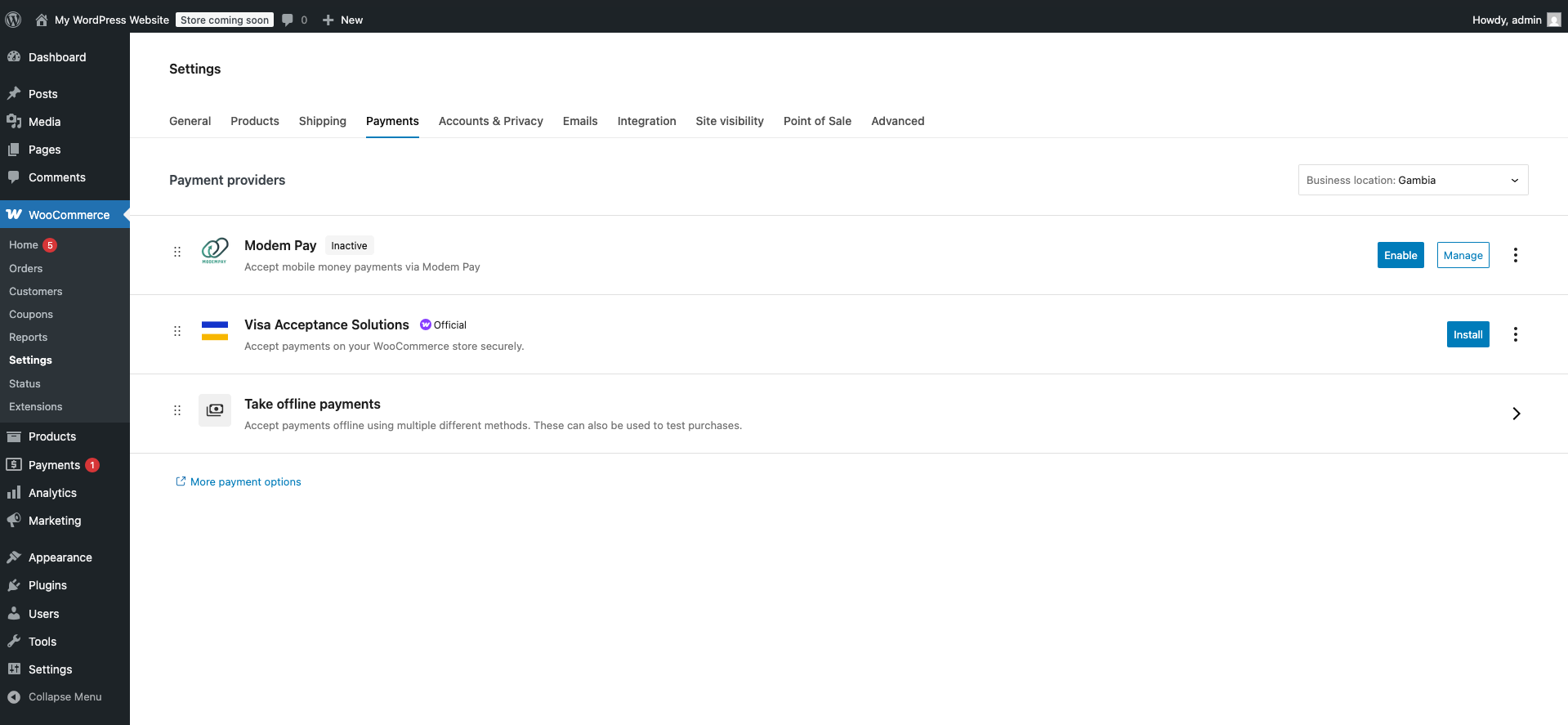
1. Go to **WooCommerce → Settings → Payments**.
2. Find **Modem Pay** in the list of payment gateways.
3. Click **Manage** to open the settings panel.
***
## ⚙️ Configuration
After activation:
1. Go to **WooCommerce → Settings → Payments**.
2. Find **Modem Pay** in the list of payment gateways.
3. Click **Manage** to open the settings panel.
 ***
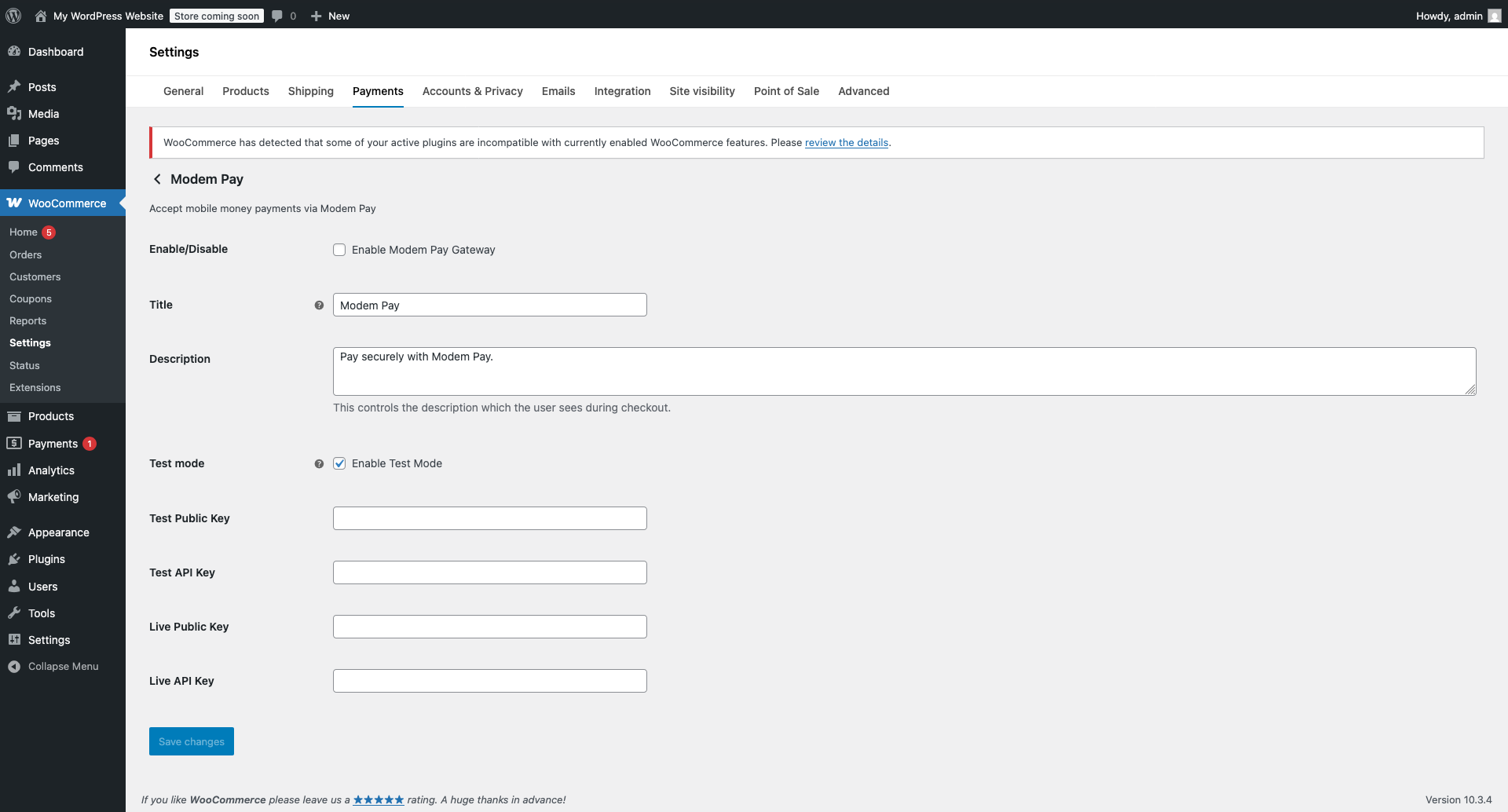
### 🧾 Settings Reference
| Setting | Description |
| ------------------- | ---------------------------------------------------------------------- |
| **Enable/Disable** | Turns the Modem Pay gateway on or off. |
| **Title** | Label shown to customers during checkout (e.g., “Pay with Modem Pay”). |
| **Description** | Description shown at checkout to explain the payment method. |
| **Test Mode** | Enables sandbox transactions for testing. |
| **Test Public Key** | Public test key from your Modem Pay dashboard. |
| **Test API Key** | Secret test key for sandbox requests. |
| **Live Public Key** | Public key for production payments. |
| **Live API Key** | Secret key for live transactions. |
***
### 🧾 Settings Reference
| Setting | Description |
| ------------------- | ---------------------------------------------------------------------- |
| **Enable/Disable** | Turns the Modem Pay gateway on or off. |
| **Title** | Label shown to customers during checkout (e.g., “Pay with Modem Pay”). |
| **Description** | Description shown at checkout to explain the payment method. |
| **Test Mode** | Enables sandbox transactions for testing. |
| **Test Public Key** | Public test key from your Modem Pay dashboard. |
| **Test API Key** | Secret test key for sandbox requests. |
| **Live Public Key** | Public key for production payments. |
| **Live API Key** | Secret key for live transactions. |
 ***
## 🧠 Setup Steps
1. **Enable** the Modem Pay gateway.
2. Set a **Title** and **Description** (what users see at checkout).
3. Toggle **Test Mode** while testing integration.
4. Enter your **Test Keys**.
5. Save and place a test order.
6. Switch off **Test Mode**, enter your **Live Keys**, and save again.
***
## 🧠 Setup Steps
1. **Enable** the Modem Pay gateway.
2. Set a **Title** and **Description** (what users see at checkout).
3. Toggle **Test Mode** while testing integration.
4. Enter your **Test Keys**.
5. Save and place a test order.
6. Switch off **Test Mode**, enter your **Live Keys**, and save again.
 ***
## ✅ Verify Integration
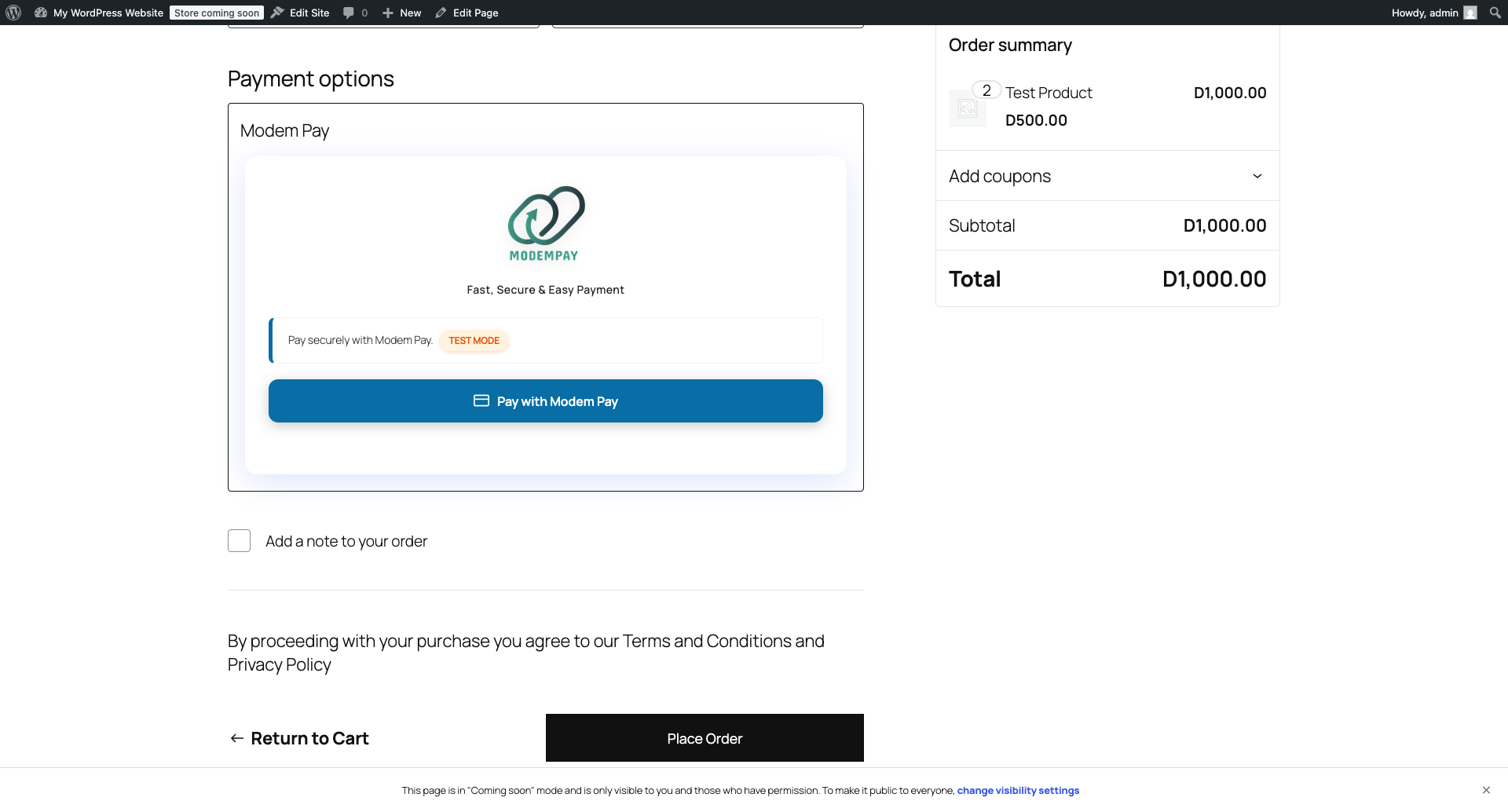
* Perform a test payment in **Test Mode** to confirm setup.
* Switch to **Live Mode** and verify transactions appear in your Modem Pay dashboard.
* If payments fail, double-check your API keys and mode selection.
Make sure you’re using **test keys** in sandbox mode and **live keys** in production. Mixing them up is the fastest way to confuse both WooCommerce and yourself.
***
## 🧩 Troubleshooting
| Issue | Likely Cause | Solution |
| ----------------------------------------- | -------------------------------------- | ----------------------------------------------------------------------------------------------- |
| Modem Pay not visible at checkout | Plugin disabled or WooCommerce missing | Enable Modem Pay under **WooCommerce → Settings → Payments** and confirm WooCommerce is active. |
| Payments not processing | Wrong API keys or test mode still on | Verify your mode and keys match the environment. |
| Admin notice: “WooCommerce not installed” | Missing dependency | Install and activate WooCommerce first. |
***
## 🏁 Summary
Once configured, Modem Pay appears as a checkout option for customers to complete payments seamlessly via mobile money.\
It’s fast, secure, and works natively within WooCommerce’s order system.
***
## ✅ Verify Integration
* Perform a test payment in **Test Mode** to confirm setup.
* Switch to **Live Mode** and verify transactions appear in your Modem Pay dashboard.
* If payments fail, double-check your API keys and mode selection.
Make sure you’re using **test keys** in sandbox mode and **live keys** in production. Mixing them up is the fastest way to confuse both WooCommerce and yourself.
***
## 🧩 Troubleshooting
| Issue | Likely Cause | Solution |
| ----------------------------------------- | -------------------------------------- | ----------------------------------------------------------------------------------------------- |
| Modem Pay not visible at checkout | Plugin disabled or WooCommerce missing | Enable Modem Pay under **WooCommerce → Settings → Payments** and confirm WooCommerce is active. |
| Payments not processing | Wrong API keys or test mode still on | Verify your mode and keys match the environment. |
| Admin notice: “WooCommerce not installed” | Missing dependency | Install and activate WooCommerce first. |
***
## 🏁 Summary
Once configured, Modem Pay appears as a checkout option for customers to complete payments seamlessly via mobile money.\
It’s fast, secure, and works natively within WooCommerce’s order system.