> ## Documentation Index
> Fetch the complete documentation index at: https://docs.modempay.com/llms.txt
> Use this file to discover all available pages before exploring further.
# Payment Form
The **Modem Pay Payment Form** plugin allows you to easily integrate secure payment forms into your WordPress site using the Modem Pay gateway. You can create custom payment pages, collect payments, and redirect users after successful transactions, all with a simple shortcode.
## ✨ Features
* Seamless integration with Modem Pay’s API
* Customizable payment forms with dynamic amounts and custom fields
* Responsive and modern design that adapts to your WordPress theme
* Secure form submissions using nonces and sanitized input
* Simple setup and user-friendly configuration interface
***
## ⚙️ Requirements
* WordPress **5.0+**
* PHP **7.4+**
* A **Modem Pay** account (test or live) to obtain API keys
***
## 🚀 Installation
Follow these steps to install and activate the plugin:
### 1. Download the Plugin
[Download `modempay-payment.zip`](https://github.com/chibuike-okpara/modem-pay-wordpress-plugin/releases/download/v1/modempay-payment.zip)
### 2. Upload and Activate
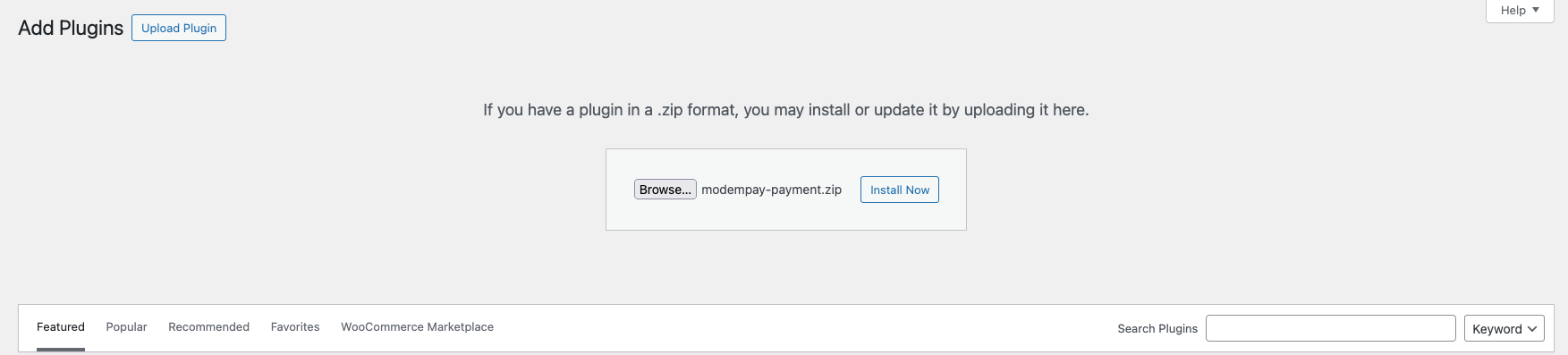
1. Log in to your WordPress Admin Dashboard.
2. Navigate to **Plugins → Add New**.
3. Click **Upload Plugin**, then select the `modempay-payment.zip` file.
4. Click **Install Now** → **Activate Plugin**.
 ### 3. Verify Installation
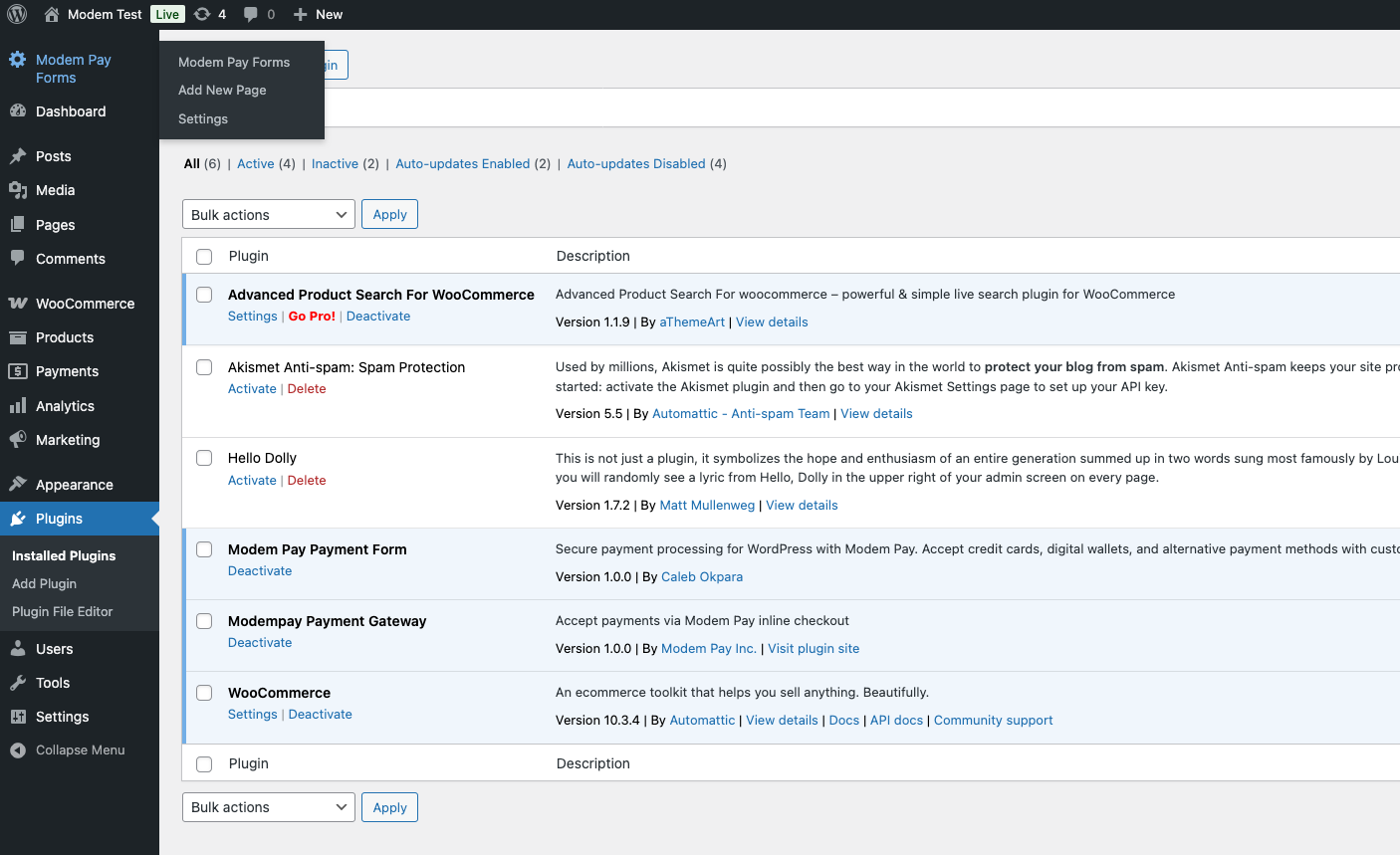
After activation, you’ll see **Modem Pay Forms** in your WordPress admin sidebar.
### 3. Verify Installation
After activation, you’ll see **Modem Pay Forms** in your WordPress admin sidebar.
 ***
## ⚙️ Configuration
You’ll need to set your API keys and preferences before accepting payments.
### 1. Get Your Modem Pay API Keys
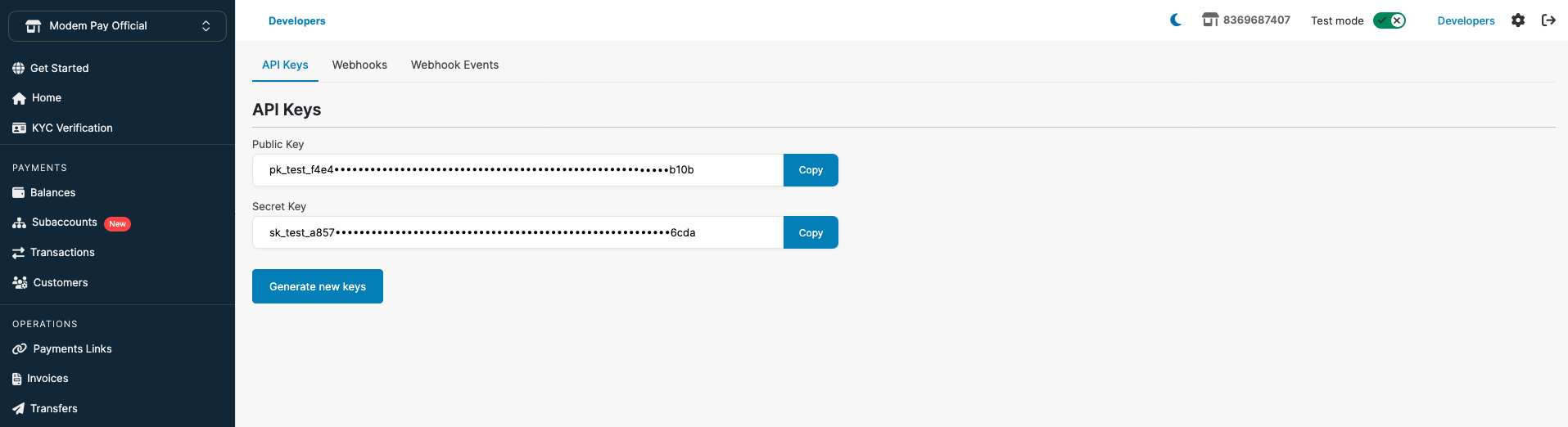
1. Log in to your [Modem Pay Dashboard](https://modempay.com).
2. Go to **Developer → API Settings**.
3. Copy your **Test** and **Live** API keys.
***
## ⚙️ Configuration
You’ll need to set your API keys and preferences before accepting payments.
### 1. Get Your Modem Pay API Keys
1. Log in to your [Modem Pay Dashboard](https://modempay.com).
2. Go to **Developer → API Settings**.
3. Copy your **Test** and **Live** API keys.
 ### 2. Open Plugin Settings
In WordPress:
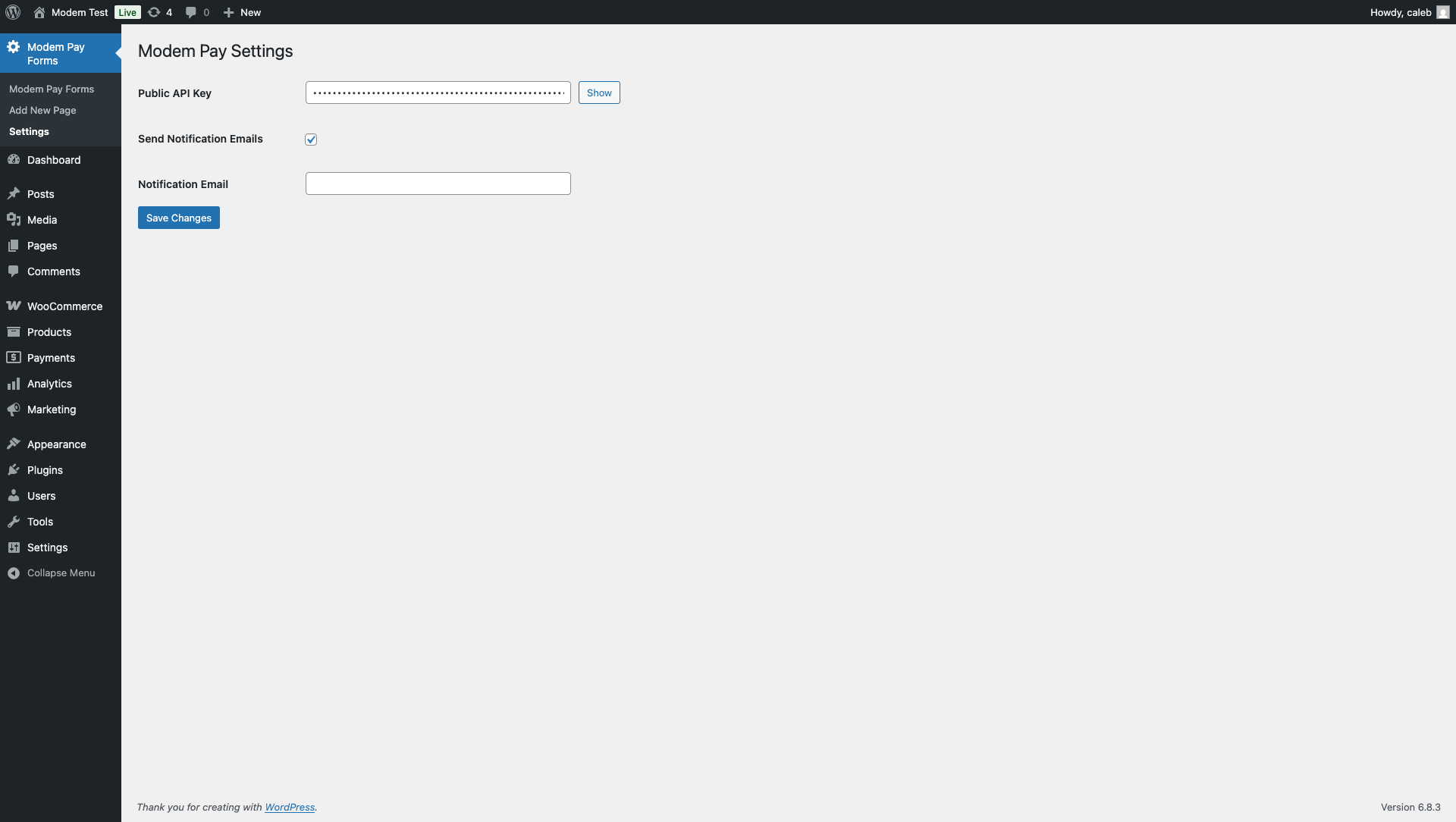
* Go to **Modem Pay Forms → Settings**
* Paste your Public API keys into the appropriate fields:
* **Public API Key**
### 2. Open Plugin Settings
In WordPress:
* Go to **Modem Pay Forms → Settings**
* Paste your Public API keys into the appropriate fields:
* **Public API Key**
 ***
## 💳 Creating a Payment Form
### 1. Add a New Form
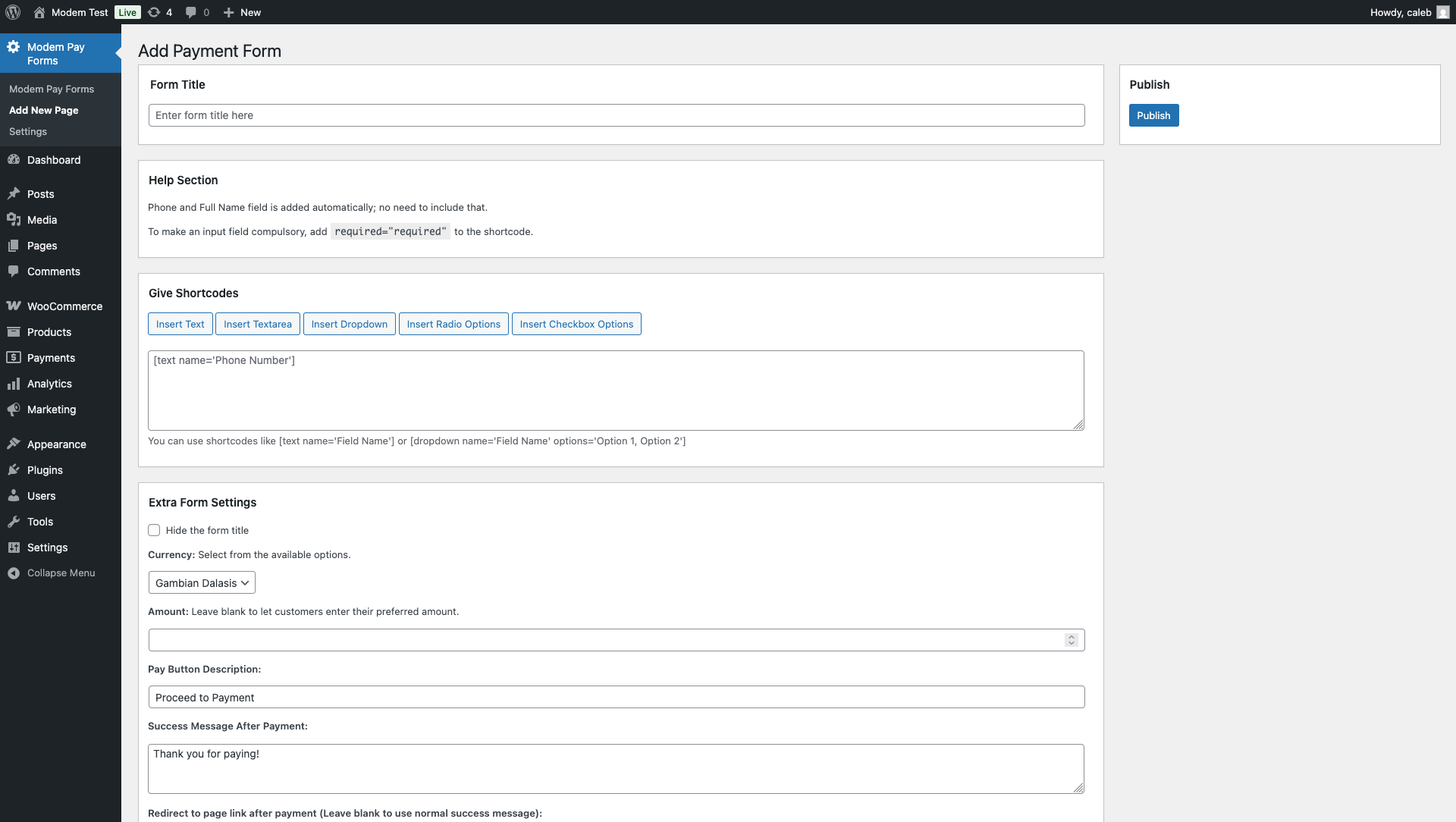
* Go to **Modem Pay Forms → Add New**
* Fill in the details:
| Field | Description |
| ------------------- | ---------------------------------------- |
| **Title** | Descriptive name (e.g., “Event Payment”) |
| **Amount** | Fixed or dynamic |
| **Redirect URL** | Optional success page |
| **Custom Fields** | Extra inputs if needed |
| **Pay Button Text** | Button label |
| **Success Message** | Shown after payment |
Click **Publish** when done.
***
## 💳 Creating a Payment Form
### 1. Add a New Form
* Go to **Modem Pay Forms → Add New**
* Fill in the details:
| Field | Description |
| ------------------- | ---------------------------------------- |
| **Title** | Descriptive name (e.g., “Event Payment”) |
| **Amount** | Fixed or dynamic |
| **Redirect URL** | Optional success page |
| **Custom Fields** | Extra inputs if needed |
| **Pay Button Text** | Button label |
| **Success Message** | Shown after payment |
Click **Publish** when done.
 ## 🧩 Embedding the Payment Form
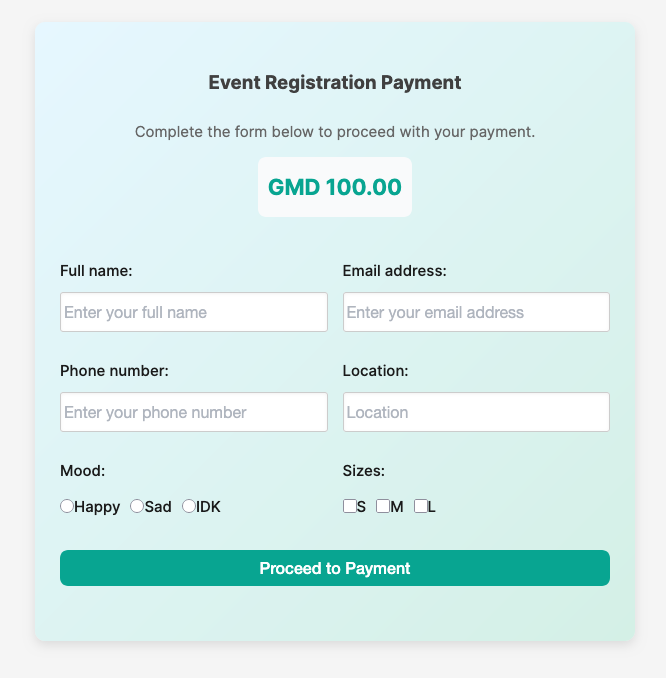
Add your payment form anywhere using a shortcode.
```bash shortcode theme={null}
[modem_pay_payment_page id=1]
```
## 🧩 Embedding the Payment Form
Add your payment form anywhere using a shortcode.
```bash shortcode theme={null}
[modem_pay_payment_page id=1]
```
 For more information and advanced documentation, visit the [Modem Pay WordPress Plugin repository](https://github.com/chibuike-okpara/modem-pay-wordpress-plugin).